Installation
Before installing, check compatibility and prerequisites for your board and Toolbox release. The walkthrough below illustrates the installation process; its screenshots are not a software compatibility matrix.
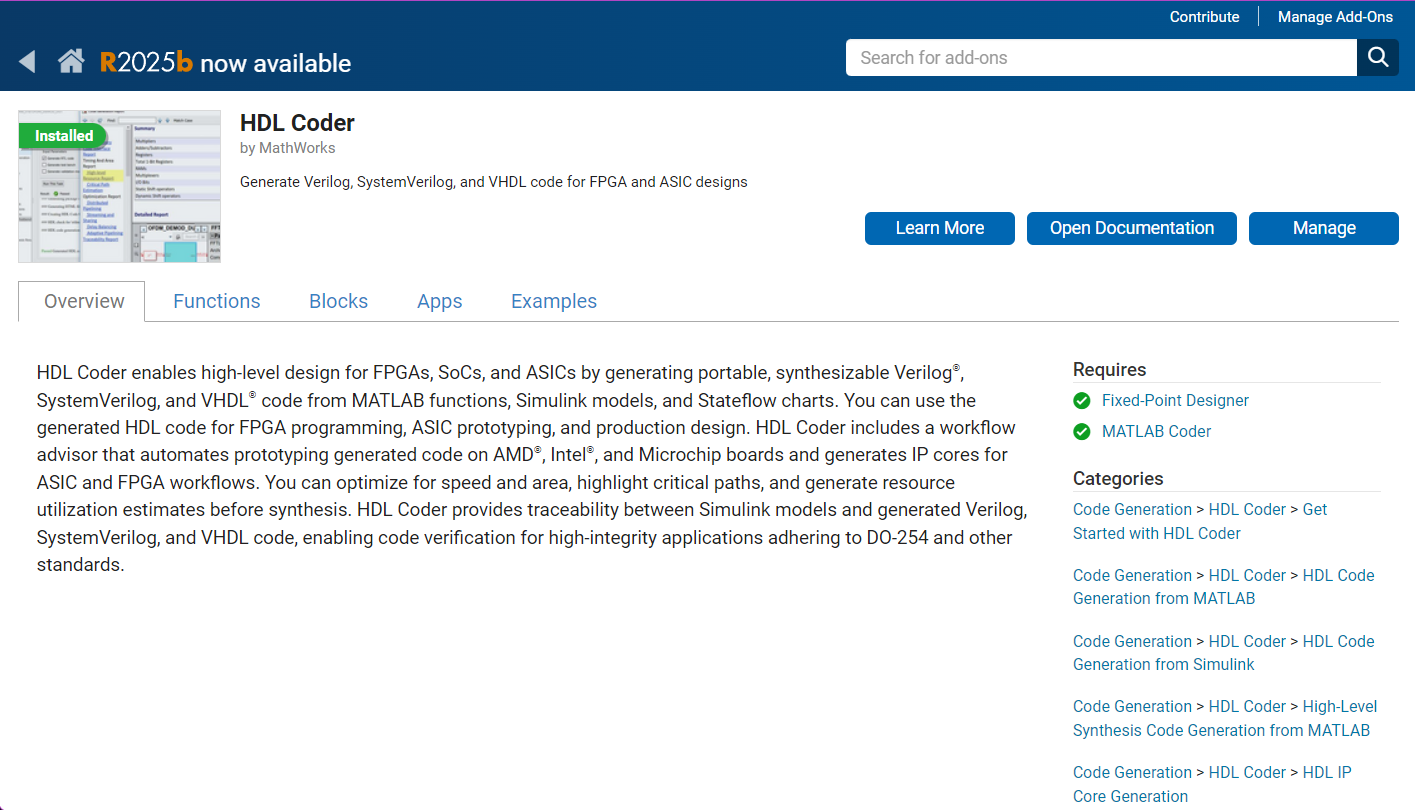
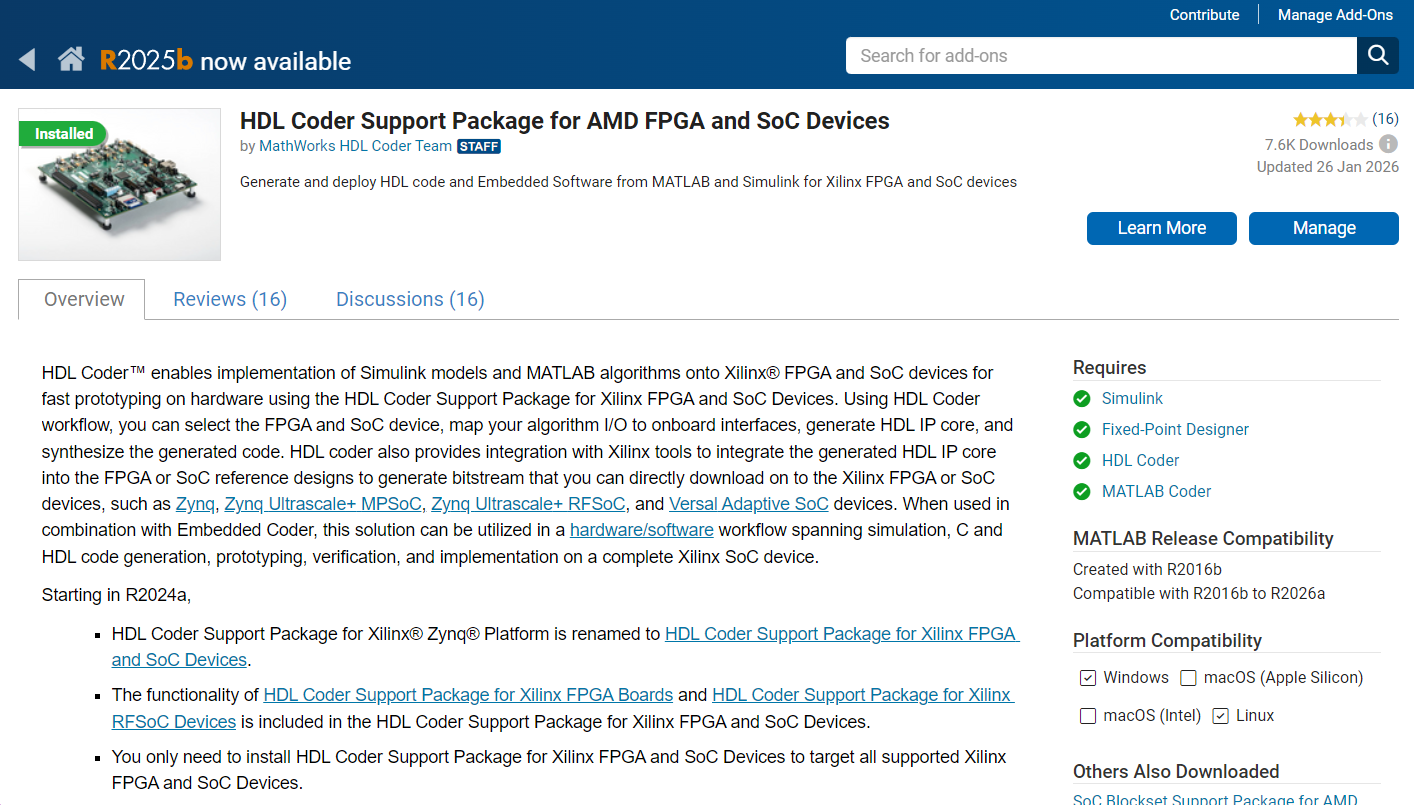
You'll also need the HDL Coder Add-On on Matlab, and it is possible that you'll have to install additional packages, such as the HDL Coder Support Package for AMD FPGA and SoC Devices, depending on the board you're using. To get those, you can launch Matlab and in the top tool bar, go to the "Apps" section and click on "Get More Apps". You can then type the name of the Add-on you're looking for in the search bar.
Now to install NOA toolbox, open Matlab, go to the working directory window, on the left, and open the directory containing the .mltbx file for the NOA toolbox.
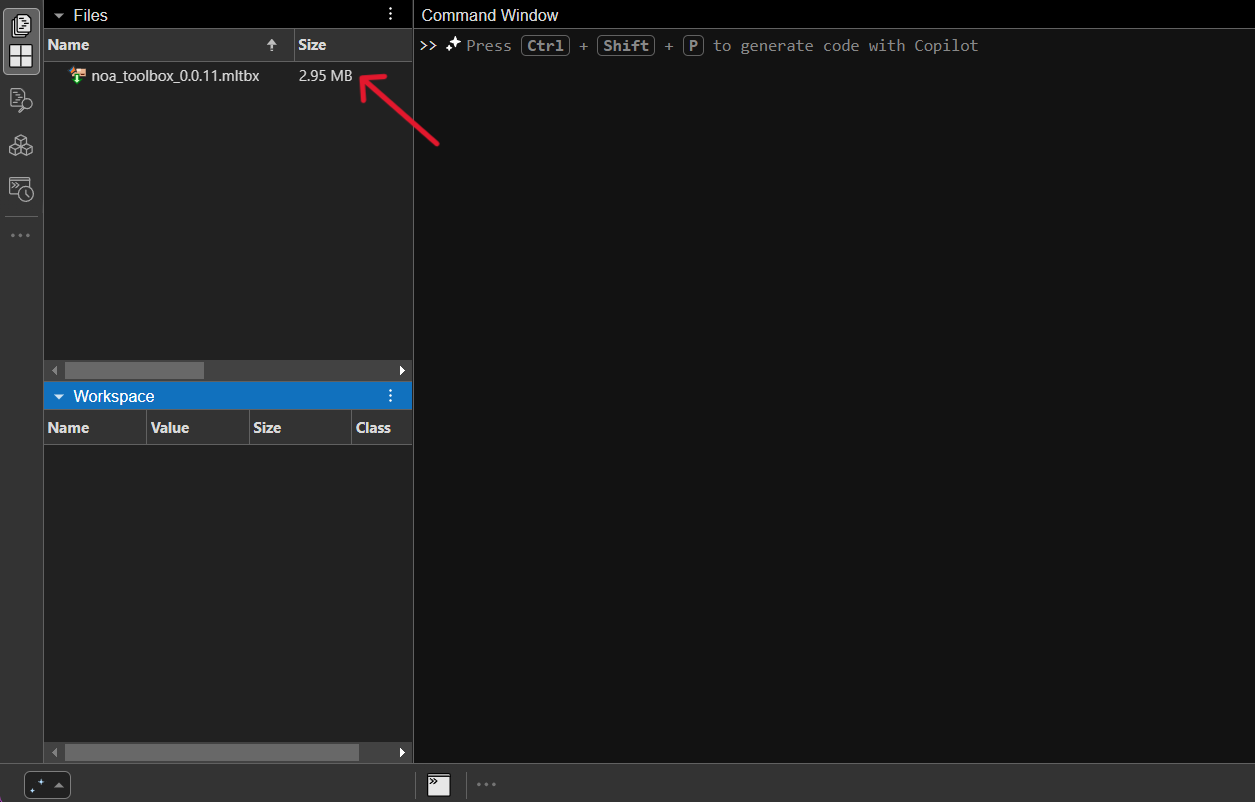
Click on the file, it should open an installation window.
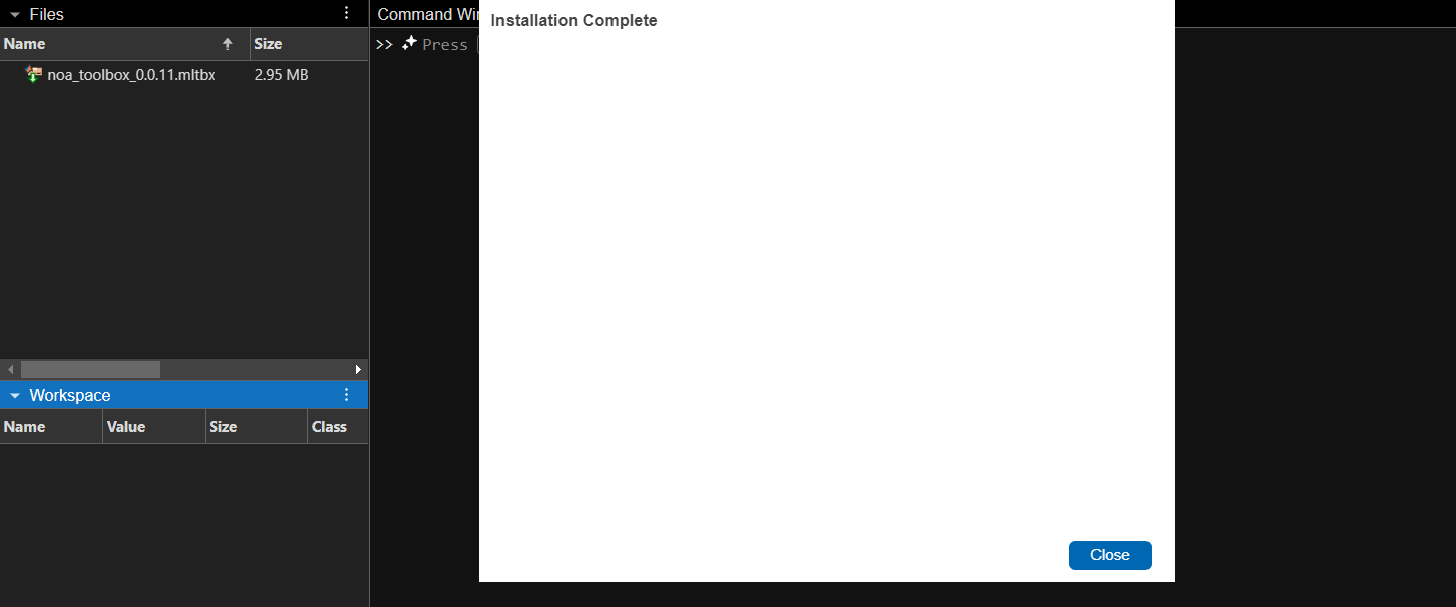
Once the installation is done, activate your license by using the following command in the Matlab Command Window: noa_activate("example") (replace example by your license code).
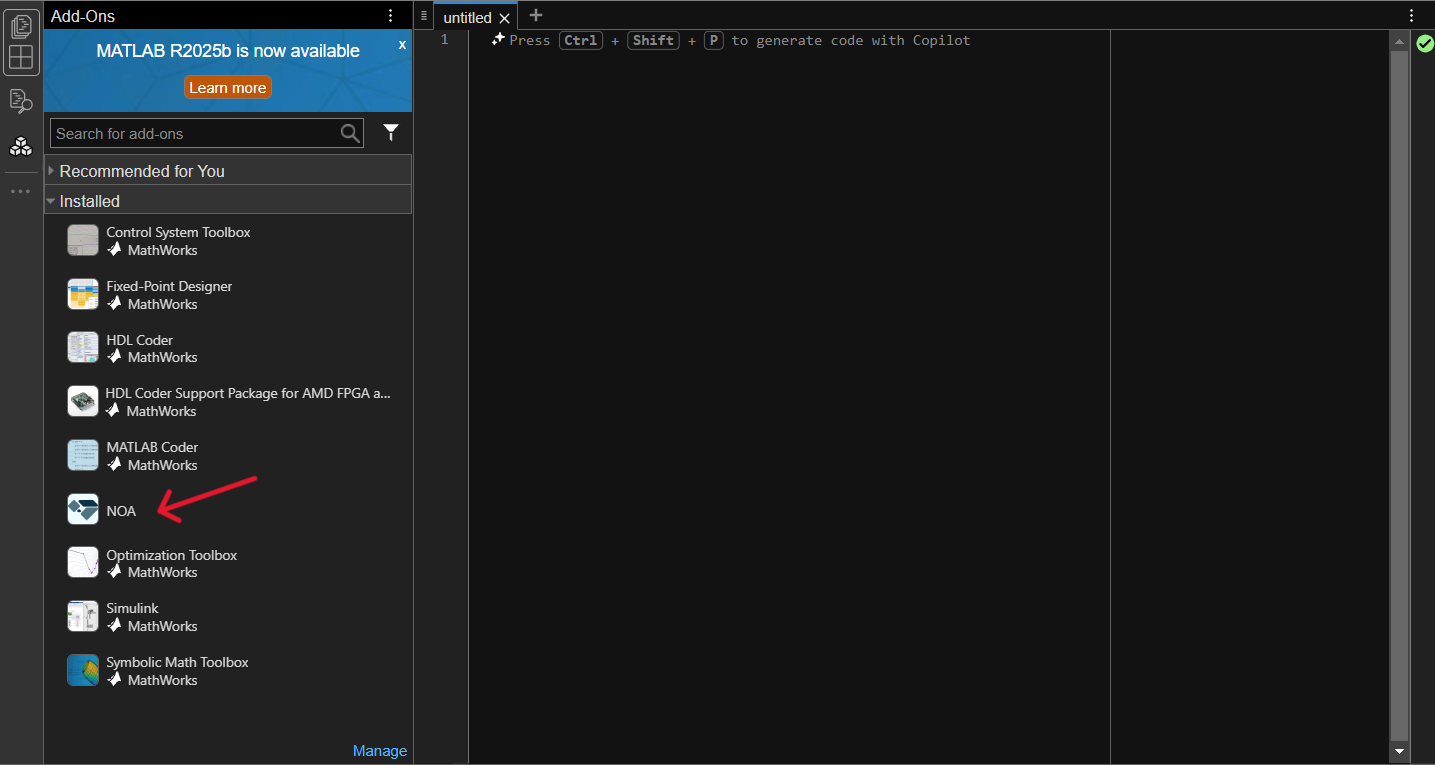
Close and reopen Matlab. If the installation worked properly, you should see the NOA Toolbox appear in the Add-Ons management tab.
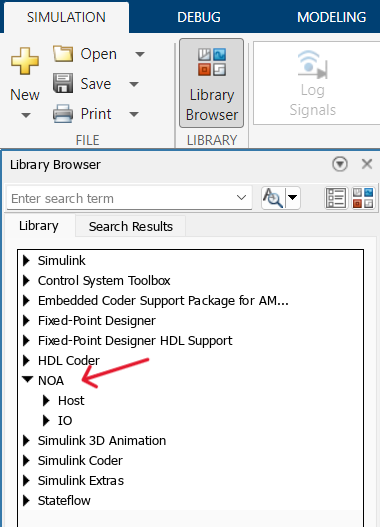
Now when you open Simulink, you should have a new tab named NOA on your top toolbar, as displayed below.

You should also be able to access the blocks included in the toolbox: you can check this by clicking on the "Library Browser" button; NOA should appear in the list.